1. View Inventory
- Log in to the Tomota application with farm management permissions;
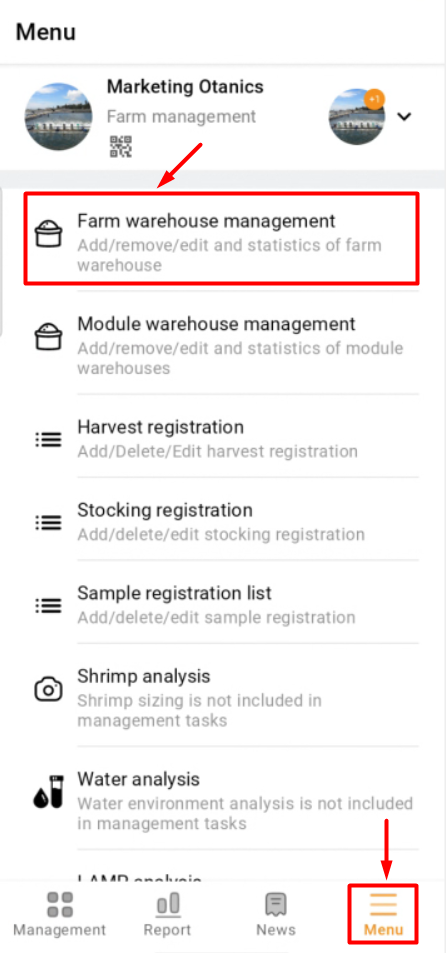
- Navigate to the Menu and select Farm Warehouse Management;
Note: If you cannot find the Inventory Management section, please go to Enable/Disable Features and enable the Warehouse Management function.
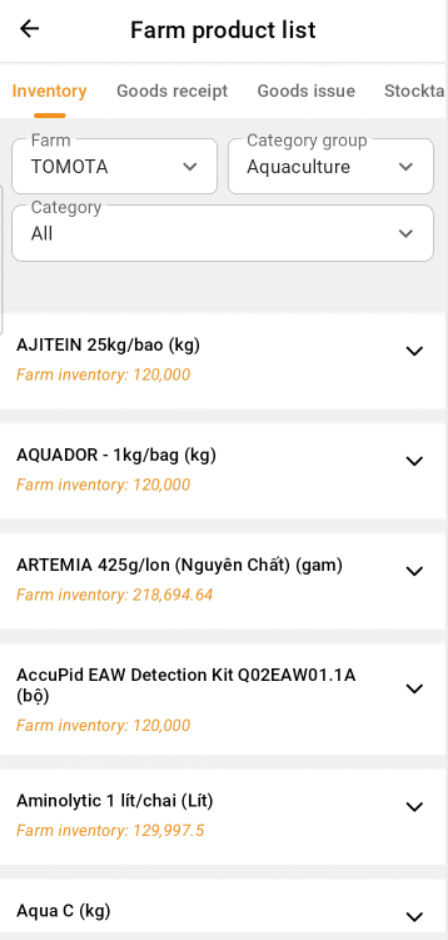
Use the filter to view the inventory of the desired farm area.
|
 |
|
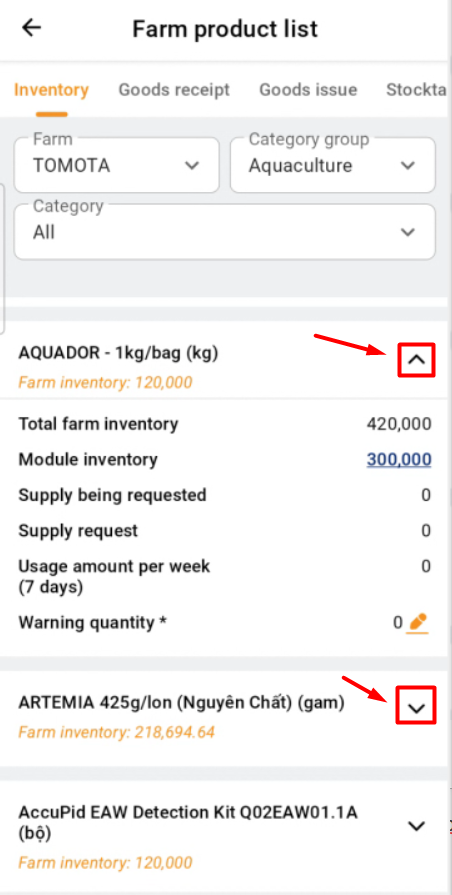
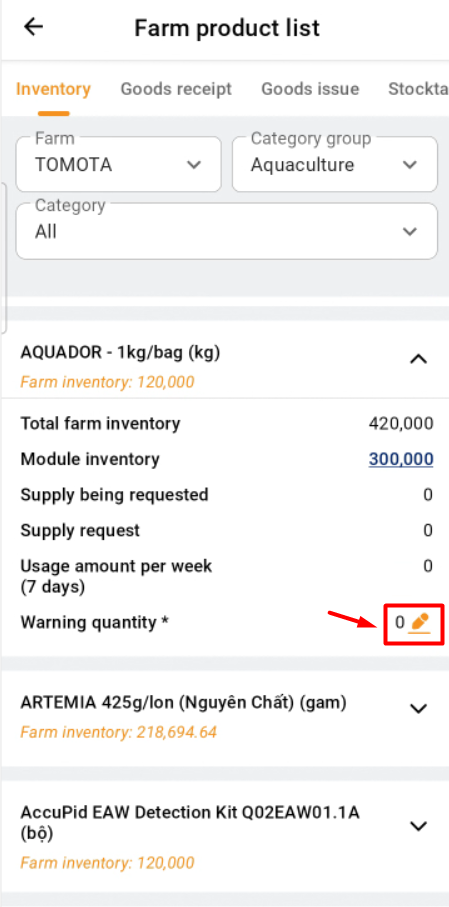
- To view the detailed product inventory, click the arrow on the right side of the screen. To set the minimum stock level, click the pencil icon.
|
 |
|
2. Add inventory to the farm's stock
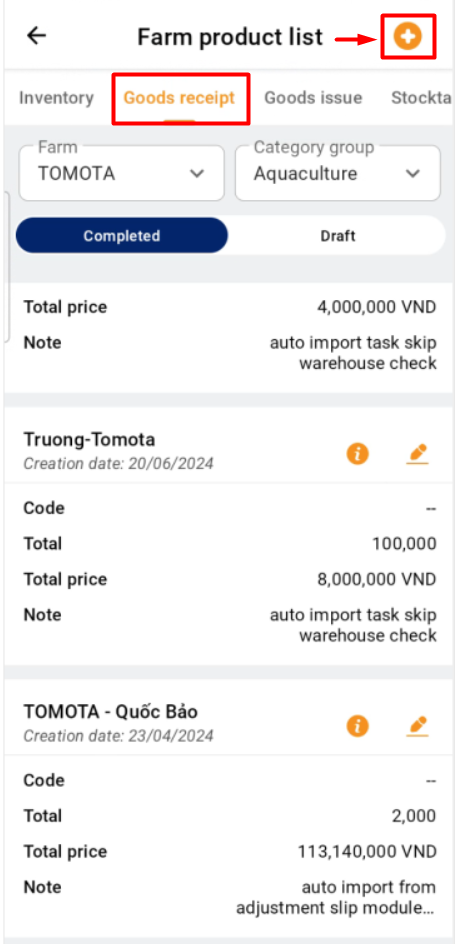
- Select "Goods receipt" and click on the "+" icon on the right side.
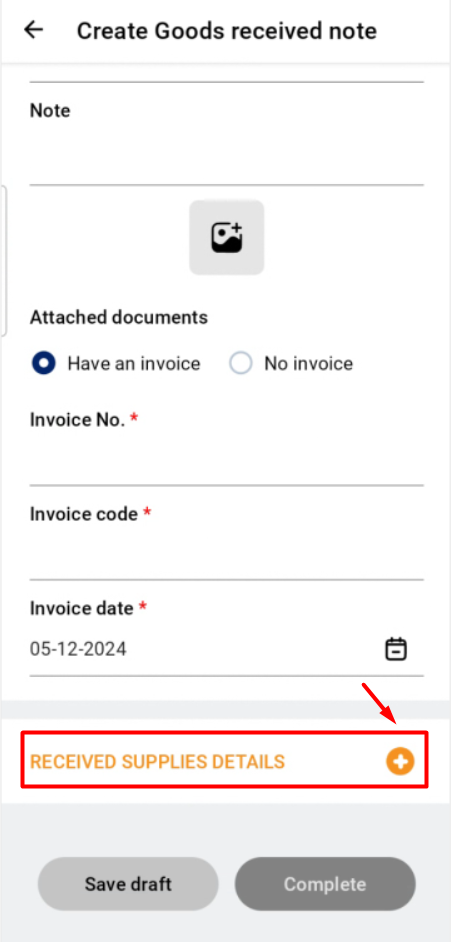
- Enter the warehouse receipt information. Click the "RECEIVED SUPPLIES DETAILS" button to add goods.
 |
 |
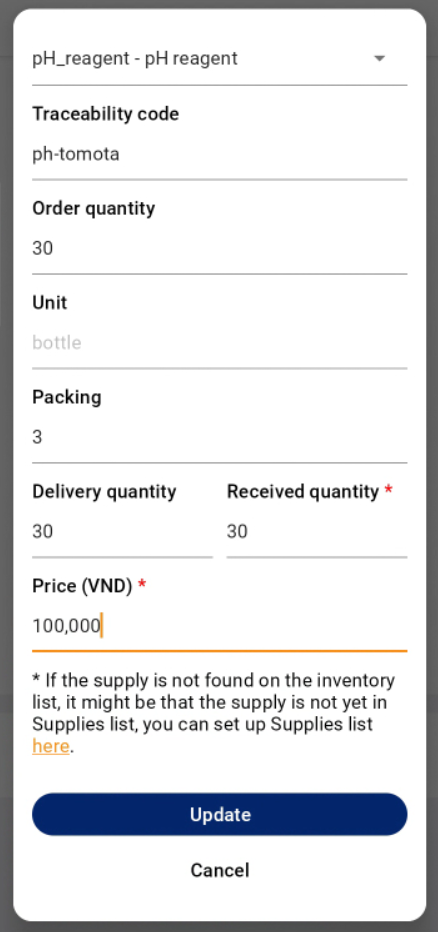
- Select the product. Enter the product details: purchase unit, quantity, and price. The system will automatically convert the data based on the original unit specified in the product's Material Catalog.
- Click "Update" to add the product to the receipt. To see the product details in the receipt and make edits or deletions, click the upward arrow icon.
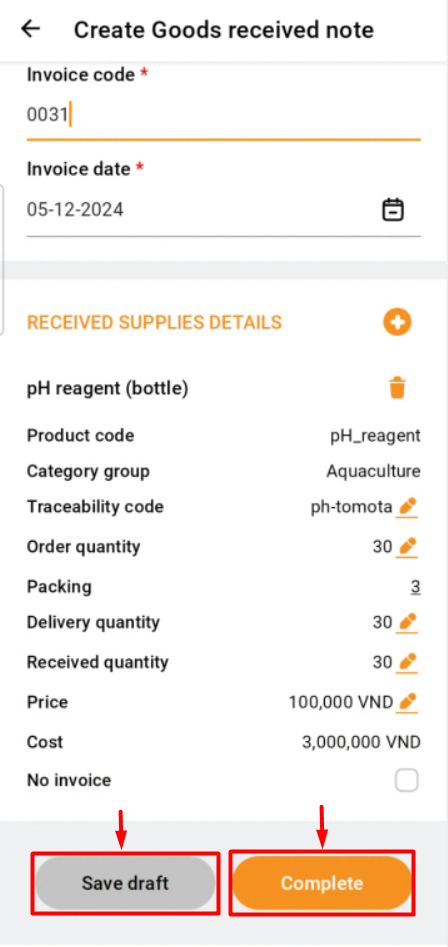
- After entering all the required details for the receipt, click "Save as Draft" or "Complete".
 |
 |
Notes:
When you select "Save as Draft", the application does not add the products to the inventory of the farming area. The receipt can still be edited or deleted.
When you select "Complete", the receipt becomes effective, the products are added to the inventory of the farming area, and the receipt can no longer be edited or deleted, only viewed.
Use the filter to select Draft or Completed receipts to view the list of records.
Click the downward arrow to view an overview of the receipt.
Additional Notes:
Draft: You can view, delete, or edit.
Completed: You can only view, but you cannot delete or edit.
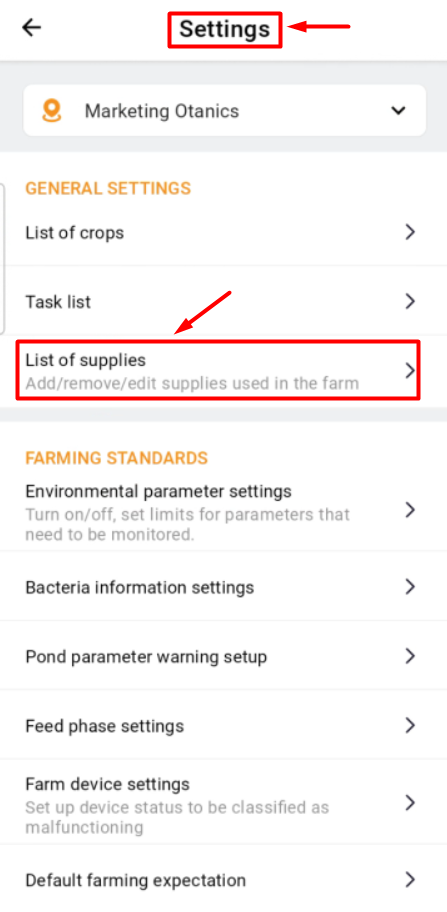
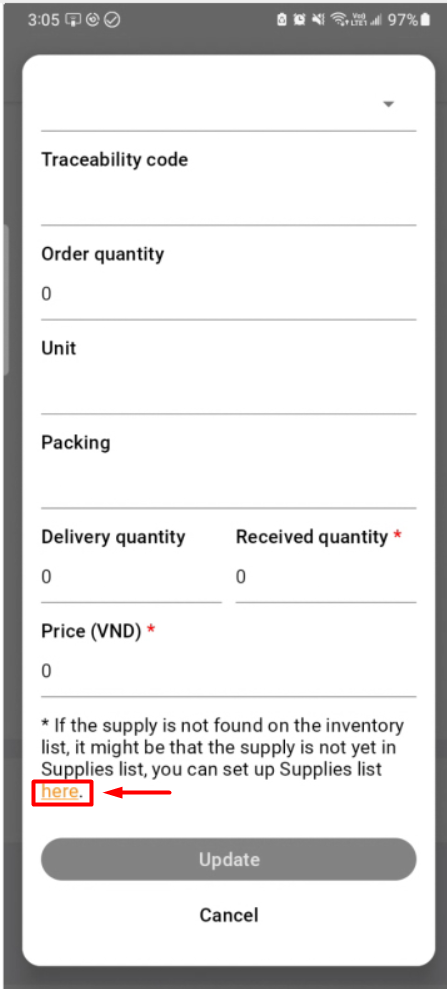
If a new product has not been updated in the system, you need to add it to the "List of Supplies" at “Settings” item. Alternatively, you can update it while in the "Add Item" at “Create Goods received note” section of the "Goods Receipt" page.
 |
 |
3. Export inventory for the module
Access to “Module warehouse management” at “Menu” item, choose Farm and Module to receive inventory, next choose the "Category group" and “Category”.